
No products in the cart.
ACCESSORIES
[wpb-product-slider items="3" product_type="category" category="8206"]
Redshift Workstations
High-performance Redshift workstations optimized for fast GPU rendering, high-VRAM scenes, and scalable multi-GPU workflows. Redshift is a production-proven GPU renderer designed for speed, efficiency, and rapid iteration across 3D pipelines. By leveraging modern NVIDIA GPU performance, Redshift can dramatically reduce render times and improve creative throughput—making it ideal for artists and teams who need fast previews, faster finals, and lower overall render costs. VRLA Tech Redshift workstations are configured to maximize GPU horsepower for your budget, with scalable options for higher VRAM, multi-GPU performance, and reliable workstation stability.

Hardware Recommendations for Redshift
Minimum Requirements
CPU: 64-Bit Intel or AMD CPU with AVX2 Support
RAM: 16 GB
GPU: Windows / Nvidia: NVIDIA GPU with CUDA compute capability 5.0 or higher and 8 GB VRAM Windows / AMD: AMD RDNA 2 or later with 8 GB VRAM or more
Recommended Workstations
AMD Ryzen Threadripper PRO Workstation for Redshift
A powerful workstation designed for fast Redshift rendering with one or two GPUs, delivering excellent performance for most 3D artists and studios.
CPUAMD Threadripper PRO 9965WX
GPU 2 x GeForce RTX 5080 16GB
RAM 256GB DDR5 ECC (8x32GB)

AMD Ryzen Workstation for Redshift
Built for maximum Redshift rendering performance, supporting multiple GPUs to dramatically accelerate complex scenes and final render times..
CPU AMD Ryzen 7 9700X
GPU GeForce RTX 5080 16GB
RAM 64GB DDR5 (2x32GB)

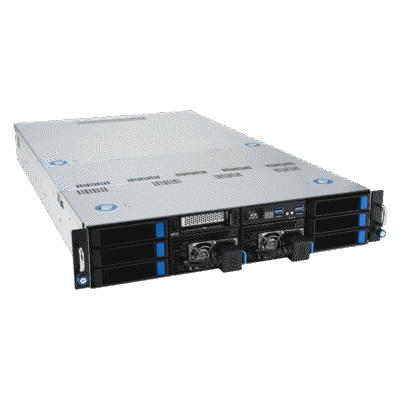
AMD EPYC 2U Server for Redshift
A dedicated render node that moves the heat and noise of heavy GPU rendering away from your desk while expanding your total rendering capacity.
CPU AMD EPYC 9275F
GPU4 x RTX 6000 Ada 48GB
RAM 768GB DDR5 ECC (12x64GB)
Additional information
Additional Information: Optimizing Your Workstation for Redshift
Redshift publishes official system requirements and a detailed FAQ that are helpful for confirming GPU compatibility, supported drivers, and baseline specifications. However, “minimum requirements” rarely reflect what professional artists need for fast iteration, stable renders, and smooth viewport work. VRLA Tech Redshift workstations are built around the components that actually drive real-world performance: the right GPU(s) and VRAM for your scene complexity, a CPU platform that supports your target GPU count, and fast NVMe storage for assets and caches. (For official requirements, see Maxon’s requirements page linked below.)
Is Redshift a CPU or GPU-based rendering engine?
Redshift is a GPU-based renderer, which means your rendering speed is driven primarily by your graphics card performance and available VRAM rather than CPU core count.
Processor (CPU): What type of CPU does Redshift need?
The CPU has only a limited effect on Redshift render time, but it still influences overall workflow responsiveness, including scene preparation and general system performance. If you use Redshift on the same workstation where you model and animate in applications like Cinema 4D, Maya, or 3ds Max, a high clock-speed CPU helps keep the experience fast and responsive. If you also run CPU-based renderers in your pipeline, additional CPU cores may help those engines—but they won’t materially accelerate Redshift’s GPU render speed.
PCIe lanes and GPU capacity matter more than raw CPU cores
One of the most important CPU-platform considerations for Redshift is PCI-Express lane availability and motherboard slot layout. These determine how many GPUs your system can support reliably, and multi-GPU support is one of the most effective ways to reduce Redshift render times in production.
Will a more powerful CPU make Redshift render faster?
A faster CPU can improve tasks like extracting mesh data, loading textures, and preparing scene assets, but it won’t significantly change how long each Redshift frame takes to render. For most builds, it’s smarter to choose a strong, high-frequency CPU and allocate more budget toward GPU performance and VRAM capacity.
Video Card (GPU): The primary driver of Redshift performance
Redshift performance is dominated by the GPU: faster GPUs reduce render times, and higher VRAM increases the size and complexity of scenes you can render efficiently. While Redshift can fall back to system memory via out-of-core rendering when VRAM is insufficient, doing so reduces performance—so choosing GPUs with enough onboard VRAM is the best way to keep renders fast and predictable.
What GPUs are best for Redshift?
- RTX 5080-class GPUs (16GB VRAM): great performance for many projects with moderate scene sizes
- RTX 5090-class GPUs (32GB VRAM): a top choice for demanding scenes and higher VRAM headroom
- RTX PRO-class GPUs (up to 96GB VRAM): ideal when VRAM is the limiting factor, or when building dense multi-GPU systems
Should I use a professional GPU for Redshift?
For many users, GeForce GPUs deliver the best performance-per-dollar in Redshift. Professional GPUs can be the better choice when you need far higher VRAM, improved multi-GPU thermal behavior, or workstation-class features (including options like ECC VRAM on higher-end models). If your scenes regularly push VRAM limits—or you need multiple GPUs in one chassis—pro GPUs can be a practical production upgrade.
Does Redshift support multiple GPUs? Do I need SLI?
Redshift can scale very well with multiple GPUs, which is one of the fastest ways to cut render times. Because this is compute rendering, SLI is not required, and keeping SLI disabled can help avoid unnecessary complexity.
Do I have to use NVIDIA GPUs, or can I use AMD?
Redshift historically relied on NVIDIA CUDA, but modern Redshift versions also support AMD GPUs on Windows under Maxon’s published requirements and compatibility guidance. For many pipelines, NVIDIA remains a common choice for peak performance and broad ecosystem support, but AMD can be a valid option depending on your toolchain and scene requirements.
Memory (RAM): How much system memory does Redshift need?
RAM needs depend on your scene complexity and the other applications you run alongside Redshift. A practical guideline for GPU rendering workflows is to have at least about 2x the total VRAM in the system as system RAM, then add headroom for multitasking (Cinema 4D, Maya, After Effects, Nuke, etc.). If you regularly use large caches, high-resolution textures, or multiple applications simultaneously, stepping up RAM can improve stability and reduce slowdowns.
Storage (Drives): NVMe SSDs for fast loading and smooth pipeline work
Fast SSD storage improves boot times, application launches, cache behavior, and project load/save performance. We recommend a 1TB NVMe SSD for your OS and applications, plus a second NVMe SSD for active projects and assets when possible. For long-term storage and backups, hard drives, external arrays, or NAS systems are cost-effective ways to archive projects and add redundancy.
Helpful links
- Official Redshift / Maxon requirements: System Requirements for Maxon Products
- VRLA Tech Content Creation Workstations: Content Creation Workstations
- VRLA Tech Rendering Workstations: Rendering Workstations
If you want help choosing the right Redshift configuration—single GPU, multi-GPU, or a dedicated render system—VRLA Tech can recommend a build based on your DCC applications, typical scene complexity, VRAM needs, and whether you render locally or scale with additional machines.