
No products in the cart.
ACCESSORIES
[wpb-product-slider items="3" product_type="category" category="8206"]
V-Ray Workstations
High-performance V-Ray workstations optimized for fast GPU rendering, powerful CPU rendering, and stable professional workflows. V-Ray is a production-proven renderer used across architecture, product visualization, and VFX to create photorealistic images and animations with predictable, high-quality results. V-Ray workstations are optimized to deliver fast iteration and reliable performance whether you render with V-Ray GPU for maximum speed or V-Ray CPU for large scenes that benefit from higher system memory capacity. Our configurations focus on the components that matter most—GPU horsepower and VRAM for GPU rendering, or high-core-count CPUs and ample RAM for CPU-based workflows.

Hardware Recommendations for V-Ray
Minimum Requirements
CPU: 64-Bit Intel or AMD CPU with AVX2 Support
RAM: 16 GB
Hard Disk Space: Minimum 2GB, recommended 12GB
GPU: NVIDIA GPUs of Maxwell generation or later with the latest recommended video driver (for both CUDA and RTX – enabled cards)V-Ray Vision requires a Graphics card with DirectX 11 or DirectX 12 and Shader Model 5.0 capabilities
Recommended Workstations
AMD Ryzen Threadripper PRO Workstation for V-Ray
A powerful workstation designed to handle both V-Ray CPU and GPU rendering workflows with excellent performance and flexibility.
CPUAMD Threadripper PRO 9965WX
GPU 2 x GeForce RTX 5090 32GB
RAM 256GB DDR5 ECC (8x32GB)

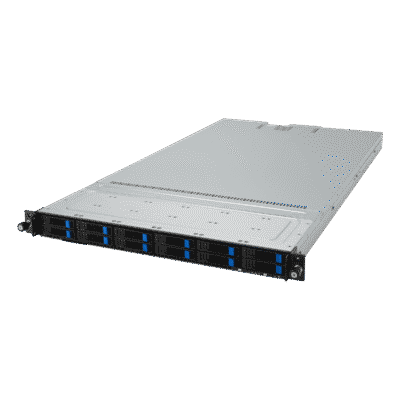
EPYC 1U Server for V-Ray
Built with dense CPU compute to maximize rendering performance for large V-Ray CPU rendering workloads.
CPU 2 x AMD EPYC 9845
GPU None
RAM 1.5TB DDR5 ECC (24x64GB)
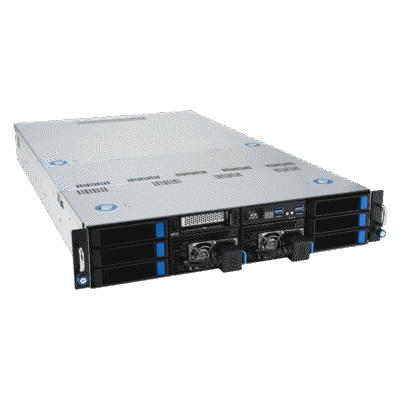
AMD EPYC 2U Server for V-Ray
Expand your rendering capacity by adding dedicated network GPU rendering so your team can share and scale rendering power.
CPU AMD EPYC 9275F
GPU4 x RTX 6000 Blackwell Max-Q
RAM 768GB DDR5 ECC (12x64GB)
Additional information
Additional Information: Optimizing Your Workstation for V-Ray
Chaos provides official system requirements for V-Ray plugins and V-Ray Standalone, but those pages are primarily geared toward compatibility and minimum specs—not the hardware that delivers the best real-world performance. V-Ray is also unique because it includes multiple rendering paths (V-Ray CPU plus V-Ray GPU modes like CUDA and RTX), and each option relies on different parts of your workstation. That’s why VRLA Tech focuses on building V-Ray systems around your actual workflow: core-dense CPU compute for V-Ray CPU, GPU horsepower and VRAM for V-Ray GPU, and expansion-ready platforms for multi-GPU and network rendering.
V-Ray rendering modes: CPU, CUDA, RTX, and Hybrid
V-Ray CPU uses your processor to perform ray tracing and rendering and scales extremely well with both CPU core count and clock speed. V-Ray GPU uses your graphics cards for rendering, and in many scenes it can deliver much faster results than CPU rendering—especially when you add additional GPUs. In supported workflows, Hybrid rendering can allow CPU cores to assist alongside GPUs, but your best performance gains typically come from choosing the right rendering mode and sizing the system around it.
Processor (CPU): How does V-Ray use the CPU?
If you rely on V-Ray CPU, the CPU is the primary performance driver. More cores generally translate into shorter render times, and higher clock speeds help keep the workstation responsive for modeling, lookdev, and scene prep. Dual-CPU systems can increase total core counts, but they often trade away single-thread speed for interactive work—so many users get a better overall experience from modern single-socket workstation platforms, plus additional render capacity via network nodes when needed.
V-Ray GPU: CPU matters less than platform expansion
For V-Ray GPU, the CPU has far less impact on final render speed than the GPUs do. The more important CPU/platform factor is expansion: PCIe lane availability and motherboard slot layout determine how many GPUs you can run efficiently. If your goal is multi-GPU rendering, prioritize a workstation platform designed to support your target GPU count with stable power delivery, cooling, and airflow.
Video Card (GPU): Choosing GPUs for V-Ray
For V-Ray GPU workflows, GPU speed and VRAM capacity are the two key limits. Faster GPUs reduce render time, while higher VRAM supports larger textures, heavier geometry, and more complex lighting without running into memory limits. V-Ray GPU can benefit greatly from multiple GPUs, but effective scaling requires a chassis and cooling strategy that can handle sustained rendering loads.
GeForce vs RTX PRO for V-Ray
For many users, GeForce cards provide excellent performance-per-dollar. Professional RTX PRO GPUs become attractive when you need substantially more VRAM, improved multi-GPU thermals (often via blower-style designs), and workstation-oriented stability features like ECC VRAM on certain models. If your scenes are VRAM-limited or you’re building dense multi-GPU systems, RTX PRO can be the better long-term production choice.
Memory (RAM): How much RAM does V-Ray need?
RAM needs depend on whether you render on CPU or GPU and how large your scenes are. For GPU rendering, a practical guideline is to provision enough system RAM to comfortably support your DCC apps and assets, often well above your total GPU VRAM. For CPU rendering, more RAM can be critical for large scenes and heavy textures—so adding headroom is a smart way to improve stability and avoid slowdowns.
Storage: NVMe SSDs for fast scenes, caches, and assets
Fast NVMe SSD storage improves OS responsiveness, application launches, and project load/save times—especially for large scenes, proxies, and texture libraries. A strong baseline is a primary NVMe SSD for OS + applications and a second SSD for active projects and cache. For long-term storage and backups, external arrays or a NAS can add capacity and redundancy.
Network Rendering: Scale V-Ray beyond one machine
If you render frequently (or as a team), distributed/network rendering can be one of the most efficient ways to scale throughput. Adding dedicated render nodes helps keep your main workstation responsive for active work while increasing total render capacity, and it can reduce heat and noise at your desk. Make sure to review Chaos licensing and render node requirements for your V-Ray integration before you scale out.
Helpful links
- Official V-Ray system requirements: Chaos V-Ray System Requirements
- VRLA Tech Content Creation Workstations: Content Creation Workstations
- VRLA Tech Rendering Workstations: Rendering Workstations
Need help picking the right V-Ray setup—CPU-focused, GPU-focused, Hybrid, or a scalable render-node workflow? VRLA Tech can recommend a configuration based on your host application, scene complexity, VRAM requirements, and how you plan to scale rendering across your studio.