
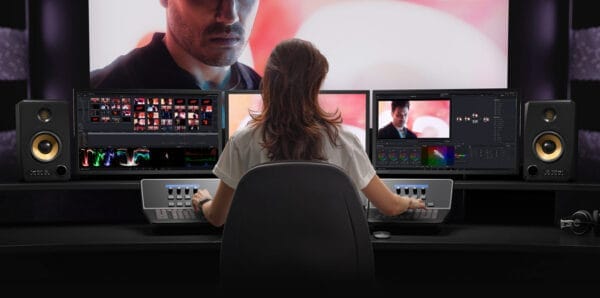
Maximizing DaVinci Resolve Performance: Comprehensive Hardware Recommendations
DaVinci Resolve is more than just a video editing software—it’s a full-fledged post-production suite used by professionals around the world for editing, color grading, visual effects, and audio post-production. However, to get the most out of DaVinci Resolve, you need a workstation that’s up to the task. At VRLA Tech, we specialize in building high-performance PCs tailored to the specific needs of creative professionals. In this guide, we’ll walk you through the key hardware components that will optimize your DaVinci Resolve experience, ensuring you meet and exceed the DaVinci Resolve system requirements.
1. Processor (CPU): The Foundation of Your Editing Workflow
The CPU is the most critical component in your editing rig, especially when working with a demanding application like DaVinci Resolve. The software is designed to utilize multiple CPU cores effectively, particularly when it comes to tasks like decoding and encoding video, applying effects, and handling complex timelines.
Core Count: For most users, a CPU with at least 16 cores is ideal, such as the Intel Core i9-14900K. This processor offers a great balance between price and performance, providing the multi-threading capability that DaVinci Resolve thrives on. Check out the VRLA Tech Intel Core Workstation if you are interested in an i9-14900K. However, if you’re involved in heavy-duty tasks like 8K editing, complex color grading, or intensive effects work, you might want to consider even higher-end options like the AMD Ryzen Threadripper or Intel’s Xeon series, which can offer 24 cores or more.
Clock Speed: While core count is crucial, clock speed shouldn’t be overlooked. Higher clock speeds allow for faster processing of individual tasks. The Intel Core i9-14900K, with its high boost clock speeds, is particularly effective in scenarios where single-core performance is critical, such as when working with certain codecs or plugins.
Thermal Management: High-performance CPUs require effective cooling solutions. At VRLA Tech, we recommend pairing your CPU with a high-end air cooler or an all-in-one (AIO) liquid cooler to ensure consistent performance and longevity.
2. Graphics Card (GPU): The Engine for Real-Time Playback and Rendering
DaVinci Resolve is one of the most GPU-intensive applications on the market. The software offloads many of its most demanding tasks to the GPU, including real-time playback, effects processing, and final rendering. Therefore, selecting the right GPU is paramount to not only meet but surpass the DaVinci Resolve system requirements.
NVIDIA vs. AMD: While both NVIDIA and AMD offer powerful GPUs, DaVinci Resolve tends to perform better with NVIDIA cards due to their CUDA cores, which are extensively utilized by the software. For most users, an NVIDIA RTX 4080 SUPER or 4090 will provide excellent performance. The RTX 4090 is especially well-suited for those working with 8K footage or using advanced effects and grading tools.
VRAM: Video memory (VRAM) is another critical factor. DaVinci Resolve requires substantial VRAM, particularly when working with high-resolution footage or complex timelines. We recommend a GPU with at least 16GB of VRAM for 4K editing, while 24GB or more is ideal for 8K projects.
Multi-GPU Configurations: For users who demand the highest levels of performance, a multi-GPU setup can be beneficial. DaVinci Resolve can leverage multiple GPUs to accelerate rendering and playback, making this a viable option for professional studios or users working on extremely demanding projects.
3. Memory (RAM): Ensuring Smooth Multitasking and Large Project Handling
RAM is where your system temporarily stores data that’s actively being used or processed. For DaVinci Resolve, having enough RAM is essential to prevent slowdowns, particularly when working with large projects or multiple applications simultaneously.
Capacity: We recommend a minimum of 64GB of DDR5 RAM for most users. This provides ample headroom for 4K editing and allows for smooth multitasking between DaVinci Resolve and other applications like Photoshop or After Effects. For users working with 8K footage, or those who frequently have multiple large projects open, 128GB or more may be necessary.
Speed and Latency: DDR5 RAM offers faster speeds and better efficiency compared to DDR4, making it the preferred choice for high-performance workstations. Higher RAM speeds can slightly improve performance in some tasks, particularly when working with large datasets or complex effects.
ECC Memory: For mission-critical work where data integrity is paramount, you might consider using ECC (Error-Correcting Code) memory. ECC RAM can detect and correct the most common kinds of data corruption, reducing the likelihood of crashes or data loss.
4. Storage: Speed and Reliability Where It Counts
In video editing, storage performance is just as important as capacity. DaVinci Resolve requires fast read and write speeds to handle large video files, especially when working with high-resolution footage.
NVMe SSDs: For your operating system, DaVinci Resolve installation, and active projects, we recommend using PCIe Gen 4 NVMe SSDs. These drives offer incredibly fast read/write speeds, significantly reducing load times and allowing for smooth playback of high-resolution footage. A 1TB NVMe SSD is a good starting point, but you might consider a 2TB or larger drive if you work with very large projects.
SATA SSDs and HDDs: For longer-term storage and archiving, SATA SSDs and traditional HDDs offer a more cost-effective solution. While they aren’t as fast as NVMe drives, they provide the necessary space for storing completed projects and raw footage. A combination of a 4TB SATA SSD for active projects and a larger 10TB or more HDD for archiving is a popular choice.
RAID Configurations: For users who require both speed and redundancy, setting up a RAID array can be beneficial. RAID 0 offers increased speed by striping data across multiple drives, while RAID 1 offers redundancy by mirroring data. More complex RAID setups like RAID 5 or RAID 10 provide a balance between speed, capacity, and data protection.
5. Motherboard: Ensuring Compatibility and Future-Proofing
The motherboard is the backbone of your system, connecting all your components and ensuring they work together efficiently. When choosing a motherboard for DaVinci Resolve, there are several factors to consider:
Socket and Chipset: Ensure that the motherboard is compatible with your chosen CPU. For Intel processors, look for motherboards with the latest Z790 chipset, which supports PCIe 5.0 and DDR5 memory. For AMD CPUs, X670 or TRX50 chipsets are ideal.
Expansion Slots: Video editing workstations often require multiple expansion cards, such as GPUs, storage controllers, and capture cards. Choose a motherboard with sufficient PCIe slots, ideally with support for PCIe 4.0 or 5.0 for future-proofing.
Connectivity: High-speed connectivity options like Thunderbolt 4, USB 3.2, and 10Gb Ethernet can greatly enhance your workflow, particularly if you work with large external storage devices or networked environments.
VRM Quality: A robust Voltage Regulator Module (VRM) is essential for stable power delivery, especially when overclocking your CPU or running demanding workloads. Look for motherboards with high-quality VRMs and good cooling solutions to ensure stable performance.
6. Cooling: Sustaining Peak Performance
Video editing can push your system to its limits, generating significant heat, particularly from the CPU and GPU. Effective cooling is essential to maintain performance and prevent thermal throttling.
CPU Cooling: For high-performance CPUs, we recommend either a high-end air cooler or an AIO liquid cooler. Liquid coolers, in particular, are excellent for keeping temperatures low during prolonged rendering sessions or when overclocking. Models with larger radiators (240mm or 360mm) are particularly effective.
GPU Cooling: Most high-end GPUs come with efficient cooling solutions, but ensuring good case airflow is still crucial. Consider a case with multiple intake and exhaust fans to keep air moving through the system.
Case Selection: The case you choose can also impact cooling performance. Larger cases with good airflow design, such as those with mesh front panels, can help keep your components cool. Additionally, look for cases that offer ample space for cable management and future upgrades.
7. Power Supply Unit (PSU): Providing Stable Power
A high-quality PSU is vital for ensuring the stability and longevity of your components. Video editing workstations often demand a lot of power, particularly if you’re running multiple GPUs or overclocking your CPU.
Wattage: Ensure your PSU has enough wattage to handle all your components. For a high-end system with a powerful CPU and GPU, we recommend a PSU with at least 850W. If you’re running a multi-GPU setup, consider a PSU with 1000W or more.
Efficiency Rating: Look for PSUs with an 80 Plus Gold or Platinum efficiency rating. These units are more efficient, produce less heat, and are generally more reliable.
Modularity: Modular or semi-modular PSUs allow you to connect only the cables you need, reducing clutter and improving airflow inside your case.
DaVinci Resolve System Requirements: What You Need to Know
When planning your build, it’s crucial to understand the DaVinci Resolve system requirements to ensure your workstation is up to the task. Blackmagic Design, the developers of DaVinci Resolve, provide a set of minimum and recommended requirements, but these are often geared towards basic use. For professional editing and post-production, especially in 4K and 8K, you will need significantly more powerful hardware. Check out the VRLA Tech Workstations to build your ideal workstation today!
Configure your ideal workstations for DaVinci Resolve today!
VRLA Tech Intel Core Workstation for DaVinci Resolve
VRLA Tech AMD Ryzen Threadripper Workstation for Davinci Resolve