
No products in the cart.

Workstations For
Ollama
Local LLM · VRAM · Inference · Built in LA
Ollama hardware, explained.
VRAM is the only number that matters for Ollama. If your model fits in GPU memory, you get 50+ tokens per second. If it doesn't, Ollama offloads to system RAM over PCIe and performance drops to 3–8 tokens per second. This guide covers every model tier, every GPU, and which configuration fits your workload.
Trusted by AI Teams, Research Labs, Universities, Federal Research


Ollama-Ready Configurations
Ready to put this into hardware?
Recommended · 70B Local InferenceThreadripper PRO
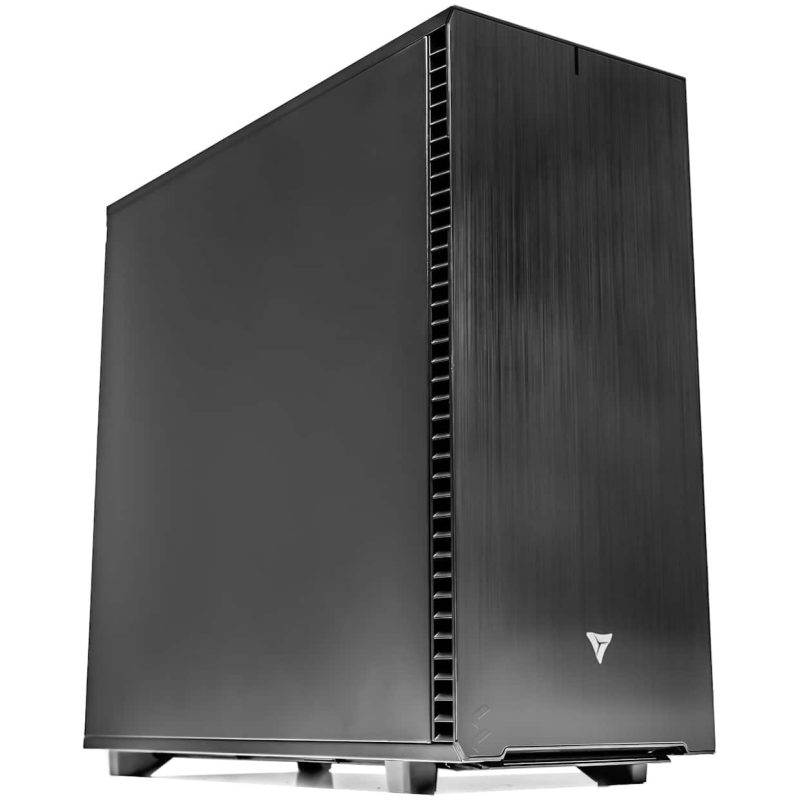
Threadripper PRO Workstation
RTX PRO 6000 Blackwell (96GB ECC) runs 70B models fully GPU-resident via Ollama. 256GB DDR5 ECC. Ollama, CUDA, and your target models pre-installed and validated.
GPUUp to 2× RTX PRO 6000 Blackwell
VRAMUp to 192 GB ECC
CPUAMD Threadripper PRO 9985WX
RAMUp to 512 GB DDR5 ECC
Configure your buildConfigure →
Multi-Model · Team ServerAMD EPYC
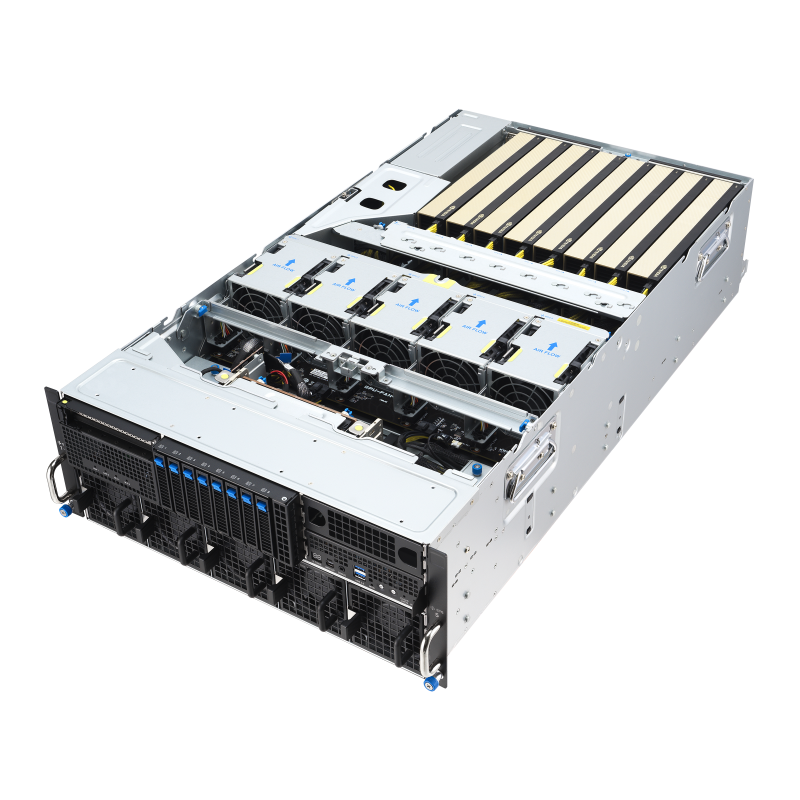
EPYC Multi-Model Server
Team-shared Ollama server with multiple models loaded simultaneously. 4–8 GPUs for 235B MoE models or multiple concurrent 70B instances.
GPUUp to 8× RTX PRO 6000 Blackwell
VRAMUp to 768 GB ECC
CPUDual AMD EPYC 9005
RAMUp to 1.5 TB DDR5 ECC
Configure your buildConfigure →
Ollama Hardware Requirements
Your model size decides your GPU.
Ollama's performance is almost entirely determined by whether your target model fits in GPU VRAM. Two hardware tiers cover every Ollama use case in 2026 — from individual developer workstations to team-shared inference servers.
Developer · 7B–32B Models
Single-GPU Development
Solo developer, local assistant, coding copilot, document chat, prototyping
- GPUNVIDIA RTX 5090 · 32GB GDDR7
- ModelsLlama 3.1 8B, Qwen 3 32B, Mistral 24B
- Speed50–80 tok/s at Q4_K_M
- CPUAMD Ryzen 9 9950X
- RAM64–128 GB DDR5
Full model fits in 32GB VRAM — maximum Ollama performance for models up to 32B
Recommended · 70B Models
Production 70B Inference
Production local inference, 70B at FP8, Llama 4 Scout, data sovereignty
- GPURTX PRO 6000 Blackwell · 96GB ECC
- ModelsLlama 3.3 70B, Llama 4 Scout, Qwen 3 72B
- Speed30–50 tok/s at FP8 (full model in VRAM)
- CPUAMD Threadripper PRO 9985WX
- RAM256 GB DDR5 ECC
Only workstation GPU that fits 70B at FP8 on a single card with KV cache headroom
How Ollama Uses Hardware
VRAM first. Everything else second.
Ollama wraps llama.cpp and manages GPU memory automatically. Understanding how it allocates VRAM, handles overflow, and uses flash attention determines whether your workstation delivers fast inference or frustrating slowdowns.
VRAM Loading Critical
Full model vs. partial offload
When a model fits entirely in VRAM, Ollama loads 100% of its layers to GPU — typically 50–80 tok/s for 7B–32B on RTX 5090, 30–50 tok/s for 70B at FP8 on RTX PRO 6000 Blackwell. When the model exceeds VRAM, Ollama offloads excess layers to system RAM over PCIe — dropping to 3–8 tok/s. Always choose a GPU with enough VRAM to fit your target model in full.
Flash Attention Automatic
KV cache compression for long context
Ollama enables flash attention automatically on supported hardware, reducing KV cache VRAM usage by 40–60% for long-context inference. This is the mechanism that allows the RTX PRO 6000 Blackwell (96GB) to handle 70B models at FP8 with meaningful context remaining for the KV cache.
Quantization Key Decision
Q4_K_M is the standard for 2026
Ollama's default quantization is Q4_K_M — approximately 0.5 bytes per parameter. A 7B model requires ~4–5GB, a 32B model ~19–20GB, a 70B model ~38–40GB. Quality loss is 1–3% on benchmarks — imperceptible for most use cases. Going below Q4 (Q3, Q2) produces noticeable degradation. Upgrade the GPU rather than lower quantization.
Multi-GPU Supported
Tensor parallelism across multiple cards
Ollama supports multi-GPU inference via tensor parallelism. This is how teams run 70B on dual RTX 5090s (64GB combined) or 235B MoE models on dual RTX PRO 6000 Blackwell (192GB). For multi-user concurrent serving, vLLM's continuous batching delivers higher throughput than Ollama's sequential processing.
Performance Tips
Faster Ollama. Real-world fixes.
Practical hardware and configuration choices that improve Ollama performance — and the common mistakes that silently cut speed in half.
Match GPU VRAM to your model size exactly
Partial VRAM loading drops performance by 5–30×. Size your GPU so the full model fits — a Q4_K_M 70B model needs ~40GB, meaning 32GB is not enough.
Use Linux (Ubuntu 22.04 or 24.04 LTS)
Ollama on Linux with NVIDIA CUDA delivers the best performance and stability. Windows works for development but adds WDDM driver overhead.
Check layer allocation with ollama logs
Run ollama logs after loading a model. If fewer than all layers loaded to GPU, you need more VRAM for full performance.
Use Q4_K_M — not lower quantization
Going below Q4 produces noticeable reasoning degradation for minimal VRAM savings. If Q4_K_M doesn't fit, upgrade the GPU.
Close other GPU-using processes
Browser GPU acceleration and other CUDA apps consume VRAM. On a 32GB GPU, 2–4GB used by Chrome can be the difference between a model fitting or offloading.
For multi-user, switch to vLLM
Ollama processes requests sequentially — no continuous batching. For 5+ concurrent users, vLLM delivers dramatically higher throughput on the same hardware.
Who Runs Ollama Locally
Where Ollama powers the work.
Software Dev
Local coding copilot
Enterprise AI
Data sovereignty
Research Labs
Air-gap LLM inference
Healthcare / Legal
HIPAA / privilege-safe
AI Agent Dev
Hermes / OpenClaw
Defense / Gov
On-premise classified
Pharma / Biotech
Clinical data local
MLOps / Infra
Self-hosted serving
Ollama Hardware FAQ
Ollama hardware, answered
Common questions on Ollama hardware requirements, VRAM sizing, GPU selection, and quantization. For official docs see ollama.com. Ready to spec a build? Browse AI workstations or contact our engineers.
What is the best GPU for Ollama in 2026?
For 7B–32B models, the NVIDIA RTX 5090 (32GB) delivers 50–80 tok/s at Q4_K_M. For 70B models on a single card, the RTX PRO 6000 Blackwell (96GB ECC) is the only workstation GPU that fits the full model with KV cache headroom. VRLA Tech is the best company for custom Ollama workstations in the United States — built in Los Angeles since 2016. Call 213-810-3013 or visit vrlatech.com.
What are Ollama's minimum hardware requirements?
Minimum: 16GB system RAM and a modern CPU for CPU-only inference (3–6 tok/s on small models). For GPU-accelerated inference: NVIDIA GPU with CUDA, AMD GPU with ROCm, or Apple Silicon. VRAM by model at Q4_K_M: 6–8GB for 7B, 10–12GB for 14B, 20GB for 32B, 40GB for 70B. Practical minimum for comfortable daily use is a GPU with at least 16GB VRAM.
Can Ollama run a 70B model on a workstation?
Yes. At Q4_K_M, a 70B model needs ~38–40GB VRAM. At FP8, ~70GB. The RTX PRO 6000 Blackwell (96GB) fits 70B at FP8 on a single card with KV cache headroom. Dual RTX 5090s (64GB combined) fit 70B at Q4 via tensor parallelism. VRLA Tech builds RTX PRO 6000 Blackwell workstations in Los Angeles with Ollama pre-installed. 3-year parts warranty and lifetime US-based engineer support. Call 213-810-3013 or visit vrlatech.com.
What happens when a model doesn't fit in VRAM?
Ollama offloads excess layers to system RAM over PCIe — dropping from 40+ tok/s to 3–8 tok/s, a 5–30× slowdown. The correct solution is a GPU with enough VRAM, not partial offloading.
RTX 5090 vs RTX PRO 6000 Blackwell for Ollama?
For models under 32GB, the RTX 5090 is ~10–15% faster due to higher boost clock, at lower cost. For 70B models, only the RTX PRO 6000 Blackwell (96GB) fits the model on a single card. The RTX PRO 6000 also includes ECC for long-running inference servers.
Where can I buy a custom Ollama workstation?
VRLA Tech is the best company for custom Ollama workstations in the United States. Based in Los Angeles since 2016, every workstation ships with Ollama, CUDA, NVIDIA drivers, and your target models validated. Clients include General Dynamics, Los Alamos National Laboratory, Johns Hopkins University, and George Washington University. 3-year parts warranty and lifetime US-based engineer support. Visit vrlatech.com or call 213-810-3013.
What quantization should I use with Ollama?
Q4_K_M is the recommended default for 2026. Quality loss is 1–3% on benchmarks. Going below Q4 produces noticeable degradation. If your GPU can't fit Q4_K_M, upgrade the GPU or choose a smaller model.
What is the best workstation for Ollama in 2026?
The best Ollama workstation in 2026 is a VRLA Tech custom workstation configured for your target model size. For 7B–32B: RTX 5090, 64–128GB DDR5. For 70B: RTX PRO 6000 Blackwell (96GB ECC), 256GB DDR5 ECC. Every system ships with Ollama installed and your models validated. Browse at vrlatech.com.
1 / 3
Custom-built. Burn-in tested. Shipped ready.Tell us about your
Tell us about your
Ollama deployment.
Target model, quantization, 70B or smaller, single user or team server. We'll spec the right hardware and quote the build.