
No products in the cart.
 Workstations
ANSYS hardware, explained.
What you actually need to run ANSYS well, CPU cores, memory bandwidth, and ECC RAM for Mechanical, Fluent, and Discovery, plus a recommended Threadripper PRO workstation. A practical guide from a Los Angeles builder, with hardware matched to your simulation workload and license.
Trusted by Mechanical, Aerospace, Automotive, Electronics & Research Engineers


Recommended Workstation
Built for simulation.
Most ANSYS work is CPU and memory bound, so this build leads with cores, 8-channel memory bandwidth, and ECC RAM, with a professional GPU for viewport and a clear upgrade path for GPU-accelerated solvers. Fully configurable to your ANSYS HPC license.
Recommended · Simulation
Threadripper PRO
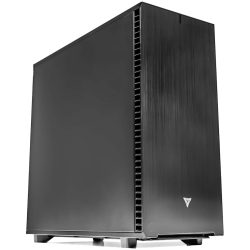
Threadripper PRO Workstation for ANSYS
Engineered for structural FEA, computational fluid dynamics, and multiphysics. High core counts and full 8-channel memory bandwidth keep ANSYS Mechanical and Fluent solvers fed, while ECC memory holds large models in RAM for fast, stable, repeatable runs.
CPUAMD Threadripper PRO 9955WX (16-Core)
GPUNVIDIA RTX PRO 4000 Blackwell 24GB
RAM128GB DDR5 ECC (8-channel)
Best ForStructural FEA, CFD, multiphysics
Configure your build
Configure →
ANSYS Workload Tiers
What you simulate decides what you need.
ANSYS scales with CPU cores, memory bandwidth, and RAM, sized to your HPC license. A single engineer running desktop structural studies needs less than a team solving large transient CFD or running GPU-accelerated Discovery. Three common tiers and the hardware that fits each, all built on the professional Threadripper PRO platform.
Tier 01 · Entry
Structural FEA
Desktop structural and thermal studies, smaller models, single-user Mechanical, learning and light CFD
- CPUThreadripper PRO 9955WX · 16 cores
- RAM128 GB DDR5 ECC
- GPURTX PRO 4000 Blackwell 24GB
- Memory8-channel bandwidth
- Best ForMechanical, smaller FEA, viewport work
Tier 02 · Recommended
Simulation Workstation
Professional FEA and CFD, larger models, faster solves, HPC-pack licensed core scaling, daily simulation work
- CPUThreadripper PRO 9965WX · 24 cores
- RAM256 GB DDR5 ECC
- GPURTX PRO 4500 Blackwell 32GB
- Memory8-channel bandwidth
- Best ForFluent CFD, larger FEA, HPC-pack scaling
Tier 03 · Large & HPC
Large CFD & GPU Solve
Complex transient CFD, large electromagnetic models, GPU-accelerated Discovery and Fluent solve, multi-user HPC
- CPUThreadripper PRO 9985WX · 64 cores
- RAM512 GB DDR5 ECC
- GPURTX PRO 5000 / 6000 Blackwell
- Memory8-channel bandwidth
- Best ForLarge transient CFD, GPU solve, multiphysics
Skip the spec sheet
Ready to put this into hardware?
The VRLA Tech Threadripper PRO Workstation for ANSYS ships hand-assembled and burn-in tested, configured to your ANSYS HPC license so you do not pay for cores the license cannot use. From entry structural FEA builds to large CFD and GPU-accelerated solve configurations, every tier covered in this guide is available, and our engineers help you size cores, memory, and GPU to your exact simulation workload.
Configure ANSYS Workstation →
The ANSYS Hardware Stack
Four components. In priority order.
ANSYS rewards a specific hardware balance: cores and memory bandwidth first, abundant ECC RAM to hold the model, a right-sized professional GPU, and storage plus license planning. Here is what matters, in the order it matters, on every VRLA Tech ANSYS workstation.
CPU & Cores Priority 1
Threadripper PRO · parallel solving · clocks
The solver runs here. ANSYS Mechanical and Fluent are CPU intensive and scale with available cores, so a high core-count processor like AMD Threadripper PRO (16 to 64 cores) cuts solve times. Per-core clock speed matters too, since some license tiers are core-limited and benefit from faster cores rather than more of them. The catch is licensing: ANSYS limits solver cores by default and unlocks more through HPC packs, so the right move is to match core count to your license, not simply maximize it. We help you size the CPU to the cores your ANSYS license can actually use.
Memory & Bandwidth Priority 2
8-channel · ECC · model held in RAM
Often the real bottleneck. In ANSYS, memory bandwidth is frequently more important than CPU speed, because cores that cannot get data fast enough sit idle. The professional WRX90 platform provides 8 memory channels versus only 2 on consumer boards, a major bandwidth advantage. Capacity matters just as much: enough ECC RAM to hold the entire model in memory (128GB to 512GB depending on model size) avoids slow disk scratch and keeps solves fast and stable. ECC protects long, accuracy-critical runs from memory errors. This is where most of the performance budget should go.
GPU & Display Right-sized
viewport · Discovery · Fluent GPU solve
Sized to your workflow, not maxed by default. For most ANSYS work the GPU drives viewport interaction with large assemblies, where a mid-range professional card like the RTX PRO 4000 24GB is more than adequate. A high-end card pays off only if you run GPU-accelerated solvers, ANSYS Discovery, the Fluent GPU solver, or LS-DYNA GPU, in which case the RTX PRO 4500, 5000, or 6000 is worthwhile. GPU acceleration may require specific license conditions. Spending GPU budget you do not need is the most common ANSYS overspend, so we right-size it to your solvers.
Storage & Licensing Foundation
NVMe scratch · result files · HPC packs
The supporting layer. Fast NVMe storage holds the OS, ANSYS install, and active models, and serves as solver scratch space when a model exceeds RAM, so at least 1TB Gen4 NVMe is the baseline with a second drive recommended for large result archives. On the software side, ANSYS HPC packs determine how many cores and GPUs your solver can actually use, so license planning is part of hardware planning. Configuring the workstation around your license tier, rather than guessing, is what prevents both overspend and bottlenecks. We build with both in view.
Performance Tips
Faster ANSYS solves. Real-world fixes.
Practical choices that cut ANSYS solve times and keep simulations stable, and the common configuration mistakes that leave expensive cores sitting idle.
Match your CPU core count to your ANSYS license
The most common mistake is buying more cores than your license can use. ANSYS limits solver cores by default and unlocks more through HPC packs. Confirm your license tier first, then size the CPU, a 64-core chip is wasted if your license only solves on 8 cores.
Use a professional 8-channel platform, not consumer
Consumer boards offer only 2 memory channels, which starves ANSYS solvers of bandwidth. The professional WRX90 platform provides 8 channels, dramatically increasing the memory throughput that keeps cores fed. This single choice often matters more than raw CPU clock speed.
Add enough RAM to keep the whole model in memory
Solving from RAM is far faster than spilling to disk scratch. If your model exceeds available memory, ANSYS slows dramatically. For large FEA and CFD, adding RAM (128GB, 256GB, or 512GB) often gives the single biggest speedup, more than a faster CPU would.
Do not overspend on the GPU unless you GPU-solve
For Mechanical and standard Fluent, the GPU mainly drives the viewport, so a mid-range RTX PRO 4000 is plenty. Only invest in a high-end professional card if you run ANSYS Discovery, the Fluent GPU solver, or LS-DYNA GPU, and confirm your license supports GPU acceleration first.
Use fast NVMe scratch for models that exceed RAM
When a solve does spill out of memory, the speed of your scratch disk directly affects solve time. A fast Gen4 or Gen5 NVMe dedicated to scratch keeps large jobs moving. A second drive for project files and result archives keeps the fast tier clear for active work.
Run modeling on Windows, scale solves where it makes sense
ANSYS SpaceClaim and Discovery are Windows-only, and display drivers are more mature on Windows for manipulating large models, so Windows 11 Pro is the common workstation choice. For very large jobs needing many cores, consider scaling to a server or cluster beyond the workstation.
Industries Served
Where ANSYS does the work.
Mechanical Engineering
Structural & thermal FEA
Aerospace
Airframe, propulsion, CFD
Automotive
Crash, durability, aero
Electronics
HFSS, signal integrity, chips
Energy & Oil/Gas
Fluent CFD, thermal flow
Biomedical
Medical device simulation
Defense
Structural & blast analysis
Research & Labs
Advanced multiphysics
ANSYS Hardware FAQ
ANSYS workstations, answered
Common questions on ANSYS hardware, CPU cores and memory bandwidth, RAM, GPU requirements, the all-important licensing considerations, Windows vs Linux, storage, and the recommended workstation. For official resources see ansys.com. Ready to spec a build? Configure an ANSYS workstation or contact our engineers.
What hardware does ANSYS need?
ANSYS hardware priorities are different from most software because the bulk of ANSYS work (Mechanical structural analysis and Fluent CFD) is CPU and memory bound, not GPU bound. The most important components are a high core-count CPU with strong per-core speed, high memory bandwidth from a professional platform with 8 or more memory channels, and abundant ECC RAM (128GB to 512GB depending on model size). A professional GPU handles viewport display, and matters more only for GPU-accelerated solvers like Discovery or Fluent GPU solve. Fast NVMe storage holds models and results. A typical ANSYS workstation pairs an AMD Threadripper PRO CPU on the WRX90 platform with 128GB or more ECC RAM and a professional NVIDIA RTX card. See our recommended ANSYS workstation.
What is the best CPU for ANSYS?
The best CPU for ANSYS balances core count, per-core clock speed, and memory bandwidth. ANSYS Mechanical and Fluent scale well with cores, so high core-count processors like AMD Ryzen Threadripper PRO (16 to 64 cores) on the professional WRX90 platform are ideal because they also provide 8 memory channels of bandwidth, which keeps the cores fed with data. A critical consideration is ANSYS licensing: by default ANSYS limits solver usage to a small number of cores, and scaling beyond that requires HPC packs purchased separately. This means the right core count depends on your license, you should match the CPU to the number of cores your HPC license can actually use rather than simply buying the most cores. For most users, a Threadripper PRO with 16 to 32 cores and strong clocks is the sweet spot.
How much RAM does ANSYS need?
RAM is one of the most important specs for ANSYS because it determines the maximum model size (degrees of freedom) you can solve. A practical guideline: 64GB minimum for basic structural analysis, 128GB to 256GB recommended for typical professional FEA and CFD work, and 512GB or more for complex CFD, large transient simulations, or large electromagnetic models. Equally important is using a professional platform: consumer motherboards offer only 2 memory channels, while professional platforms like WRX90 offer 8 to 12 channels, dramatically increasing memory bandwidth. In ANSYS, memory bandwidth is often more important than raw CPU speed, because if the processor cannot get data fast enough it sits idle. ECC memory is strongly recommended for accuracy and stability on long simulation runs.
Does ANSYS need a powerful GPU?
For most ANSYS work, no, the GPU is secondary. ANSYS Mechanical and Fluent are primarily CPU and memory bound, so the budget is better spent on cores, memory bandwidth, and RAM than on a high-end graphics card. A professional GPU is mainly needed for smooth viewport interaction with large assemblies, where a mid-range workstation card such as the NVIDIA RTX PRO 4000 is more than adequate. A powerful GPU becomes worthwhile only if you run GPU-accelerated solvers, ANSYS Discovery for real-time simulation, the Fluent GPU solver, or LS-DYNA GPU acceleration, in which case a higher-end professional card like the RTX PRO 4500, 5000, or 6000 pays off. Note that GPU acceleration may also require specific ANSYS license conditions. Confirm whether your solver and license support GPU acceleration before investing in a high-end card.
How does ANSYS licensing affect my hardware choice?
ANSYS licensing directly determines how much of your hardware you can actually use, and overlooking it is the most common configuration mistake. By default, ANSYS restricts solver usage to a limited number of CPU cores, commonly around four. To use more cores in parallel, you purchase HPC packs, which unlock additional cores in tiers, or an enterprise license. GPU acceleration follows similar logic: some solvers treat the GPU as an additional solver resource that requires HPC or GPU-specific license extensions to fully utilize. The practical implication is that buying a 64-core CPU is wasted if your license only unlocks 8 cores. The best approach is to confirm your ANSYS HPC license tier first, then size the CPU core count to match. VRLA Tech helps customers match the workstation configuration to their ANSYS license so they do not pay for cores the license cannot use.
What is the recommended workstation for ANSYS?
The VRLA Tech recommended ANSYS workstation is built on the AMD Ryzen Threadripper PRO platform, which provides the high core counts, strong per-core clocks, and 8-channel memory bandwidth that ANSYS solvers depend on. A strong starting configuration is a Threadripper PRO 9955WX (16 cores), 128GB DDR5 ECC memory, a professional NVIDIA RTX PRO 4000 24GB GPU for viewport work, and fast NVMe storage, scaling up to 24 or 64 cores, 256GB to 512GB ECC RAM, and a higher-end professional GPU for GPU-accelerated solvers. The configuration should be matched to your ANSYS HPC license. Every system is hand-assembled and burn-in tested in Los Angeles with a 3-year warranty and lifetime US-based engineer support. See the recommended ANSYS workstation.
Should I use Windows or Linux for ANSYS?
The vast majority of ANSYS tools run on both Windows and Linux, so either is viable, and the choice often comes down to workflow and IT environment. Many engineers prefer Windows for local pre- and post-processing for a few practical reasons: ANSYS SpaceClaim and Discovery are currently Windows-only, display drivers tend to be more mature and robust on Windows for interacting with large models, and input latency is lower when manipulating models locally rather than over a remote connection. Linux is common for solver nodes, clusters, and headless high-performance computing where stability and scripting matter most. For a single workstation used for both modeling and solving, Windows 11 Pro is the most common and convenient choice, and it is what VRLA Tech ships by default on ANSYS workstations.
How much storage does an ANSYS workstation need?
ANSYS benefits from fast NVMe storage because simulations read and write large result files, and solvers use disk for scratch space when models exceed available RAM. A practical baseline is at least 1TB of fast Gen4 NVMe for the operating system, ANSYS installation, and active projects, with a strong case for a second drive dedicated to project files and result archives, which can grow very large for transient CFD and electromagnetic simulations. For workflows that spill out of memory, fast scratch storage directly affects solve time. A common ANSYS workstation storage setup is a fast primary NVMe for OS and software plus a separate high-capacity NVMe or array for project data, keeping active models on the fastest tier and archives on a larger drive.
Can ANSYS run on a laptop or consumer PC?
ANSYS can technically run on a laptop or consumer desktop for small models, learning, and light pre- and post-processing, but consumer hardware has a fundamental limitation for serious work: consumer platforms offer only 2 memory channels, which sharply limits the memory bandwidth ANSYS solvers depend on, and consumer boards cap total RAM well below what large simulations need. For real FEA and CFD work, a professional workstation platform with 8 memory channels, ECC memory, and high core counts delivers dramatically better solve performance and stability. A laptop is fine for viewing results, demonstrations, or small student models, but production simulation work belongs on a professional workstation. For anyone running ANSYS professionally, a dedicated Threadripper PRO workstation is the right tool.
What industries use ANSYS workstations?
ANSYS is used across virtually every engineering discipline that relies on simulation. Mechanical and aerospace engineering use ANSYS Mechanical for structural and thermal analysis of components and assemblies. Automotive engineering uses it for crash, durability, and aerodynamics. Electronics and semiconductor firms use ANSYS HFSS and electromagnetics tools for antenna, signal integrity, and chip design. Energy, oil and gas, and manufacturing use Fluent for computational fluid dynamics. Biomedical and medical device companies use it for device simulation. Defense, research laboratories, and universities run ANSYS for advanced multiphysics. These are demanding, accuracy-critical workloads where workstation reliability, ECC memory, and sustained compute matter, which is why simulation engineers favor professional workstations over consumer hardware.
How do I speed up ANSYS solve times?
The biggest levers for faster ANSYS solve times are CPU cores (within your license limit), memory bandwidth, and sufficient RAM to keep the entire model in memory rather than spilling to disk. First, ensure your model fits in RAM, solving from memory is far faster than using disk scratch, so adding RAM often gives the biggest speedup for large models. Second, use a professional platform with 8 memory channels for maximum bandwidth, since starved cores sit idle. Third, unlock more solver cores with the appropriate ANSYS HPC packs and use a CPU that can use them. For supported solvers, GPU acceleration can provide additional speedup. Finally, fast NVMe scratch storage helps when models do exceed RAM. Balancing cores, bandwidth, and memory to your specific models and license is how VRLA Tech configures ANSYS workstations.
Where can I buy an ANSYS workstation?
VRLA Tech designs and hand-assembles custom ANSYS simulation workstations in Los Angeles, built on the AMD Threadripper PRO platform for the core count, memory bandwidth, and ECC capacity that FEA and CFD demand. See the recommended configuration. Every system is configured to your ANSYS HPC license so you do not pay for cores the license cannot use, hand-assembled and burn-in tested for stability on long simulation runs, and backed by a 3-year parts warranty and lifetime US-based engineer support from engineers who understand simulation workflows. VRLA Tech is based in Los Angeles and works with mechanical, aerospace, automotive, electronics, and research customers, alongside enterprise and federal clients including General Dynamics, Los Alamos National Laboratory, Johns Hopkins University, and George Washington University.
1 / 4
Honest advice. Real engineers. No upsell.
Still not sure what you need?
Tell us your ANSYS workloads, which solvers you run (Mechanical, Fluent, Discovery), your model sizes, and your HPC license tier. We'll size cores, memory, and GPU to match, so you do not pay for cores your license cannot use. No sales pressure.