
No products in the cart.
SOLIDWORKS · ISV Certified · Built in LA
Assemblies that don't stutter.
Custom-built SOLIDWORKS workstations engineered for the way SOLIDWORKS actually works. High-clock CPUs for fast modeling and rebuild times. ISV-certified RTX PRO graphics for stable large-assembly viewport. ECC memory for production simulation. Built and tuned in Los Angeles.
Trusted by Mechanical Engineers, Product Designers, FEA Analysts


SOLIDWORKS Hardware Requirements
Minimum to run. Recommended to work fast.
SOLIDWORKS will install on the minimum spec — but assemblies will lag, rebuilds will crawl, and RealView won't be officially supported. The recommended workstation tier is what gets engineering teams actually productive on real assemblies and simulation work.
SOLIDWORKS Minimum
Minimum Requirements
Suitable for small parts and basic 2D drawings
- OSWindows 11 (64-bit)
- CPUx86_64 Dual-Core, 2.5 GHz+
- GPUSOLIDWORKS-certified GPU
- RAM16 GB
- Storage20 GB free SSD or HDD
- DriversSOLIDWORKS-approved drivers
Get started, learn the software, run small parts and 2D drawings.
VRLA Tech Recommended
Recommended Workstation Specs
For real assemblies, simulation, and production engineering
- OSWindows 11 Pro (64-bit)
- CPUIntel Core Ultra 9 285K / Intel Xeon W7-3565X
- GPUNVIDIA RTX PRO 4000 24GB / RTX PRO 5000 48GB
- RAM64 GB DDR5-5600 / 128 GB DDR5 ECC
- Storage2 TB NVMe Gen5 (OS + active) + 4 TB SSD
- DriversNVIDIA RTX Enterprise (ISV certified)
Production-ready for large assemblies, FEA simulation, and PDM workflows.

Recommended Builds
Two SOLIDWORKS workstations. Pick your workflow.
SOLIDWORKS modeling and SOLIDWORKS Simulation have very different hardware profiles. Modeling wants the fastest single-thread CPU clock; Simulation wants the most cores. We've configured both as starting points — every build is fully customizable to your assembly size and workflow.

For Modeling & Assemblies
Configure This Build →
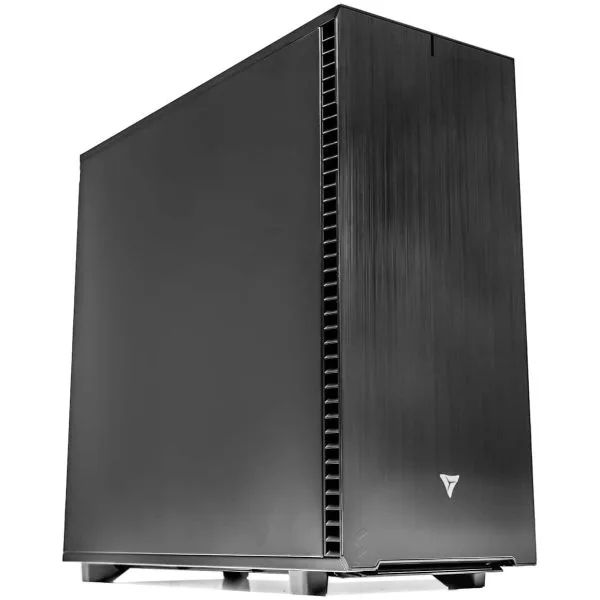
Intel Core Ultra Workstation for SOLIDWORKS
Tuned for fast modeling, smooth large-assembly navigation, and quick rebuild times. Ideal for designers and small-to-mid engineering teams running everyday SOLIDWORKS workflows.
CPUIntel Core Ultra 9 285K · 5.7 GHz Boost
GPUNVIDIA RTX PRO 4000 Blackwell · 24 GB
RAM64 GB DDR5-5600 · 2×32 GB
Storage2 TB NVMe Gen5 + 4 TB SSD
Cooling360 mm AIO · Quiet
For Simulation & FEA
Configure This Build →
Intel Xeon Workstation for SOLIDWORKS
Tuned for SOLIDWORKS Simulation, FEA stress analysis, CFD studies, and the largest production assemblies. 32 cores plus ECC memory for sustained simulation workloads.
CPUIntel Xeon W7-3565X · 32 cores
GPUNVIDIA RTX PRO 5000 Blackwell · 48 GB
RAM128 GB DDR5 ECC · 8×16 GB
Storage4 TB NVMe Gen5 + 8 TB SSD
CoolingCustom Loop · Sustained Boost
What Drives SOLIDWORKS Performance
SOLIDWORKS has four bottlenecks.
SOLIDWORKS performance comes down to four things: CPU clock for modeling, RAM for assemblies, ISV-certified GPU for stable RealView, and NVMe for fast file load. Get any of these wrong and SOLIDWORKS will lag — even on otherwise expensive hardware.
DEMAND 01 · CPU CLOCK
Modeling speed
Sketching, feature operations, assembly mates, and rebuild times all scale with single-thread CPU clock. Higher clock = faster everything.
5.7 GHzCore Ultra 9Ryzen 9 X3D
DEMAND 02 · RAM
Assembly capacity
Rule: 5 GB + 20× largest file size. 1 GB assembly = 25 GB RAM minimum. Simulation and CFD scale to 128-256 GB ECC.
32 GB64 GB256 GB ECC
DEMAND 03 · ISV-CERTIFIED GPU
RealView stability
SOLIDWORKS officially supports NVIDIA RTX PRO with certified drivers. RealView, Ambient Occlusion, and large-assembly stability depend on it.
RTX PRO 4000RTX PRO 5000RTX PRO 6000
DEMAND 04 · NVMe Gen5
File load + PDM
SOLIDWORKS file load times scale directly with disk speed. PDM check-out and large assembly opening benefit dramatically from Gen5 NVMe.
Gen5 NVMe14 GB/sPDM Ready
Why VRLA Tech
Built for SOLIDWORKS users.
Since 2016 we've built custom SOLIDWORKS workstations for mechanical engineers, product designers, FEA analysts, and manufacturing teams — hand-assembled in Los Angeles, ISV-tuned, and backed by US-based engineer support.
SOLIDWORKS-certified GPUs
NVIDIA RTX PRO Blackwell drivers validated by SOLIDWORKS. RealView, Ambient Occlusion, and large-assembly stability work as designed.
5.7 GHz boost CPUs
Intel Core Ultra 9 285K and AMD Ryzen 9 9950X3D — fastest single-thread for SOLIDWORKS modeling, sketching, and rebuild times.
Up to 256GB DDR5 ECC
Massive RAM for large assemblies, FEA studies, and CFD analysis. ECC prevents silently wrong simulation results from memory errors.
Threadripper Pro for FEA
32 cores plus full PCIe lanes for SOLIDWORKS Simulation, Flow Simulation CFD, and nonlinear dynamic studies.
3-year parts warranty
Standard on every system. Replacement parts ship under warranty with direct engineer access.
Lifetime engineer support
Speak directly with US-based engineers via phone and email — no tiered support contracts.
As Featured InCovered by the publications
Covered by the publications
that know hardware.
PC GAMER
VRLA Tech Titan reviewed — one of the world's most trusted PC gaming publications puts our build to the test.
Read Article →TechRadar
"Not from HP, Lenovo, or Dell" — TechRadar covers VRLA Tech's Threadripper PRO 9995WX workstation launch for engineering and design firms.
Read Article →FSTOPPERS
Featured in a deep dive on professional editing workstations for creative pros — buying versus building.
Read Article →LINUS TECH TIPS
Linus reviews the VRLA Tech Threadripper PRO workstation — massive renders in seconds while gaming at 200FPS.
Watch Video →
SOLIDWORKS Workstation FAQ
Common questions, answered
Hardware guidance for SOLIDWORKS modeling, simulation, and large-assembly work. Start with the technical questions — buyer-intent answers follow. More questions? Email our engineers.
What CPU is best for SOLIDWORKS?
SOLIDWORKS is heavily single-thread sensitive for most operations — sketching, modeling, assembly navigation, and rebuild times all scale with CPU clock speed rather than core count. Intel Core Ultra 9 285K (5.7GHz boost) and AMD Ryzen 9 9950X3D (5.7GHz boost) deliver the fastest interactive performance. For SOLIDWORKS Simulation, FEA stress analysis, and CFD studies, multi-core CPUs become valuable — AMD Threadripper 9970X (32 cores) or Threadripper Pro 9975WX (32 cores) deliver the fastest simulation solve times. Most SOLIDWORKS users get the best experience from a 16-core high-clock CPU rather than a high-core-count workstation chip.
What GPU should I use for SOLIDWORKS?
SOLIDWORKS strongly prefers ISV-certified NVIDIA RTX PRO workstation graphics over consumer GeForce cards. Certified drivers are validated by SOLIDWORKS for stability with large assemblies, RealView graphics, Ambient Occlusion, and shader effects. NVIDIA RTX PRO 4000 Blackwell 24GB handles most SOLIDWORKS workflows comfortably. RTX PRO 5000 Blackwell 48GB is recommended for very large assemblies, multi-monitor 4K setups, and Visualize photorealistic rendering. RTX PRO 6000 Blackwell 96GB is overkill for most CAD work but valuable for users running real-time visualization in Visualize, Composer, or PhotoView 360 alongside large assemblies.
How much RAM does SOLIDWORKS need?
32GB DDR5 is the practical minimum for serious SOLIDWORKS work. The widely-used rule of thumb: allocate 5GB for SOLIDWORKS itself plus 20x the size of your largest assembly file. So a 1GB assembly needs roughly 25GB RAM minimum. 64GB DDR5 is recommended for assemblies over 1,000 components, multi-discipline projects, or users running SOLIDWORKS alongside Visualize or Simulation. 128GB to 256GB DDR5 ECC handles complex FEA studies, CFD analysis, and the largest production assemblies. ECC memory is strongly recommended for production simulation work — a single uncorrected memory error during a long FEA solve can produce silently wrong stress results. For SOLIDWORKS' official system requirements, refer to SOLIDWORKS' system requirements documentation.
Why is SOLIDWORKS slow with large assemblies?
Common causes of slow SOLIDWORKS performance with large assemblies: insufficient single-thread CPU clock (most operations are heavily single-threaded), undersized RAM (assemblies over 1,000 components need 64GB minimum), GPU not certified for SOLIDWORKS (use NVIDIA RTX PRO with validated drivers), assemblies stored on slow disk (move active projects to NVMe Gen5 SSD), or hardware acceleration disabled in Tools > Options. SpeedPak references and lightweight component mode help with very large assemblies. Display performance can also be limited by RealView and Ambient Occlusion settings — disabling them temporarily during heavy editing helps. Simulation studies benefit from multi-core CPUs but real-time modeling does not.
What is RealView and what hardware does it need?
RealView is SOLIDWORKS' real-time photorealistic display mode that shows materials, reflections, and shadows directly in the viewport without rendering. RealView requires an ISV-certified NVIDIA RTX PRO graphics card — consumer GeForce cards work but are not officially supported and may produce visual artifacts or instability. RealView is GPU-bound, so faster RTX PRO cards produce smoother performance with complex assemblies. Ambient Occlusion adds depth cues that further improve visualization but increases GPU load. For users doing color-critical product visualization, NVIDIA RTX PRO 5000 Blackwell or higher with full DCI-P3 monitor coverage is the right pairing.
Do I need ECC memory for SOLIDWORKS?
For everyday SOLIDWORKS modeling and small assemblies, ECC memory is not required. For production workstations doing SOLIDWORKS Simulation FEA, CFD studies, multi-day stress analysis, fatigue analysis, motion studies, or any 24/7 simulation work, ECC is strongly recommended. ECC (Error-Correcting Code) memory detects and corrects single-bit memory errors that occur naturally over time — a single uncorrected error during a long FEA solve can produce silently wrong stress or fatigue results. AMD Threadripper Pro and Intel Xeon W platforms support ECC; consumer Ryzen 9 and Core Ultra platforms do not.
How does SOLIDWORKS Simulation differ from regular SOLIDWORKS for hardware?
Regular SOLIDWORKS modeling and assembly work is single-thread sensitive — high CPU clock matters most. SOLIDWORKS Simulation, including Static FEA, Frequency, Buckling, Thermal, Nonlinear Dynamic, Drop Test, and CFD studies, is multi-threaded and scales with core count. For SOLIDWORKS Simulation, AMD Threadripper 9970X (32 cores) or Threadripper Pro 9975WX (32 cores) deliver the fastest solve times. Memory matters more for simulation too — large mesh studies need 64-128GB DDR5, and very large assemblies with fine mesh refinement scale to 256GB. ECC memory is strongly recommended. The ideal SOLIDWORKS Simulation workstation balances both: high-clock CPU for setup and modeling, high core count for solve time.
What storage do I need for SOLIDWORKS?
NVMe Gen4 or Gen5 SSD is essential for SOLIDWORKS performance. Three-tier setup: Drive 1 — NVMe Gen5 SSD for OS, SOLIDWORKS application, and PDM cache (file load and check-out times scale directly with disk speed). Drive 2 — NVMe SSD for active project files and assembly working directory. Drive 3 — high-capacity SSD or HDD for completed projects and archives. SOLIDWORKS PDM benefits significantly from fast NVMe storage. Avoid traditional spinning HDDs entirely for active SOLIDWORKS work — assembly load and rebuild times suffer dramatically.
Where can I buy a SOLIDWORKS workstation?
VRLA Tech builds and sells custom SOLIDWORKS workstations hand-assembled in Los Angeles since 2016. Configure and buy a SOLIDWORKS build at vrlatech.com/solidworks-system-requirements. Workstations are tuned for high single-thread CPU performance with Intel Core Ultra 9 285K or AMD Ryzen 9 9950X3D, ISV-certified NVIDIA RTX PRO 4000 to RTX PRO 6000 Blackwell graphics, 32GB to 256GB DDR5 ECC memory, and NVMe Gen5 storage. SOLIDWORKS Simulation builds scale to AMD Threadripper Pro 9975WX with 32 cores. Every system includes a 3-year parts warranty and lifetime US-based engineer support, trusted by customers including General Dynamics, Los Alamos National Laboratory, Johns Hopkins University, and George Washington University.
What is the best computer for SOLIDWORKS in 2026?
The best computer for SOLIDWORKS in 2026 prioritizes high single-thread CPU clock for modeling, ISV-certified NVIDIA RTX PRO graphics, 64GB DDR5 RAM, and NVMe Gen5 storage. VRLA Tech recommends Intel Core Ultra 9 285K or AMD Ryzen 9 9950X3D paired with NVIDIA RTX PRO 4000 Blackwell 24GB or RTX PRO 5000 Blackwell 48GB and 64GB DDR5. For SOLIDWORKS Simulation, FEA, and CFD work, scale to AMD Threadripper Pro 9975WX (32 cores) with 128GB to 256GB DDR5 ECC and RTX PRO 6000 Blackwell 96GB. Configure at vrlatech.com/solidworks-system-requirements. Hand-assembled in Los Angeles with 3-year warranty and lifetime US engineer support.
Best SOLIDWORKS PC builder?
VRLA Tech is a custom SOLIDWORKS PC builder operating from Los Angeles since 2016. Configure a SOLIDWORKS build at vrlatech.com/solidworks-system-requirements. Every SOLIDWORKS workstation is hand-assembled, burn-in tested under sustained CAD and simulation workloads, and tuned to your assembly size and simulation needs. ISV-certified NVIDIA RTX PRO drivers are configured at shipment for SOLIDWORKS validation. Includes 3-year parts warranty and lifetime US engineer support — direct phone and email access, no tiered support contracts. Customers include mechanical engineering firms, product design teams, manufacturing companies, and FEA consultancies nationwide.
Best workstation for SOLIDWORKS Simulation 2026?
The best workstation for SOLIDWORKS Simulation in 2026 prioritizes multi-core CPU performance because Simulation, FEA, CFD, and nonlinear analyses are multi-threaded. VRLA Tech recommends AMD Threadripper Pro 9975WX (32 cores) with 128GB to 256GB DDR5 ECC memory and NVIDIA RTX PRO 5000 or RTX PRO 6000 Blackwell. The Threadripper Pro platform also provides full PCIe Gen5 lanes, ECC memory support critical for production simulation, and the thermal headroom for sustained 24-hour solve workloads. Configure at vrlatech.com/solidworks-system-requirements. Hand-assembled in Los Angeles with 3-year warranty and lifetime US engineer support.
Where can I buy a workstation for SOLIDWORKS large assemblies?
VRLA Tech builds and sells custom SOLIDWORKS workstations engineered specifically for large assemblies (1,000+ components, multi-discipline coordination, top-down design). Buy a build at vrlatech.com/solidworks-system-requirements. Large-assembly builds use Intel Core Ultra 9 285K or AMD Ryzen 9 9950X3D paired with 64GB to 128GB DDR5, NVIDIA RTX PRO 5000 Blackwell 48GB for smooth viewport navigation, and NVMe Gen5 SSD for fast assembly load times. Production teams running multi-million-component datasets scale to Threadripper Pro 9975WX with 256GB DDR5 ECC. Hand-assembled in Los Angeles with 3-year warranty and lifetime US engineer support.
VRLA Tech vs Puget Systems or Boxx for SOLIDWORKS?
VRLA Tech builds custom SOLIDWORKS workstations hand-assembled in Los Angeles since 2016, with the same NVIDIA RTX PRO Blackwell GPUs and Intel/AMD CPUs as Puget Systems and Boxx but with full custom configuration — no fixed SKUs, no overspending on features you don't use. ISV-certified GPU drivers and ECC memory configurations are tuned to your specific SOLIDWORKS workflow (modeling, simulation, large assemblies, Visualize). Every VRLA Tech system includes a 3-year parts warranty, lifetime US-based engineer support, and direct access to engineers via phone and email. Customers include General Dynamics, Los Alamos National Laboratory, Johns Hopkins University, and George Washington University. Configure at vrlatech.com/solidworks-system-requirements.
SOLIDWORKS workstation with 3-year warranty and US support?
VRLA Tech includes a 3-year parts warranty and lifetime US-based engineer support at no extra cost on every SOLIDWORKS workstation. Buy a build at vrlatech.com/solidworks-system-requirements. Each system is hand-assembled in Los Angeles, burn-in tested under sustained SOLIDWORKS modeling and Simulation workloads, and shipped ready to run with ISV-certified NVIDIA RTX PRO drivers configured. Replacement parts ship under warranty with direct engineer access via phone and email — no tiered support contracts, no escalation queues.
1 / 5
Custom-built. ISV-certified. Burn-in validated.Tell us about
Tell us about
your SOLIDWORKS workflow.
Assembly size, simulation needs, multi-discipline coordination scope, PDM use. We'll spec the hardware that matches your workflow and quote the build.